Text-to-Speech Learning Tools
Text-to-Speech Solution for Brightspace LMS
ReadSpeaker solutions are integrated into the Brightspace learning platform and can be found on the Brightspace App Finder. Adding ReadSpeaker text-to-speech is simple. Administrators simply request it to be added to their Brightspace platform via their D2L account manager and the tool is automatically activated for all courses.
- Respect UDL (Universal Design for Learning)
- Read aloud all contents with a simple click on play button
- Supports teachers, students and readers

Highlights
- Seamlessly integrated and easy to use.
- High-quality, natural-sounding voices.
- Assessment, accessibility and accommodations support directly within the D2L environment.


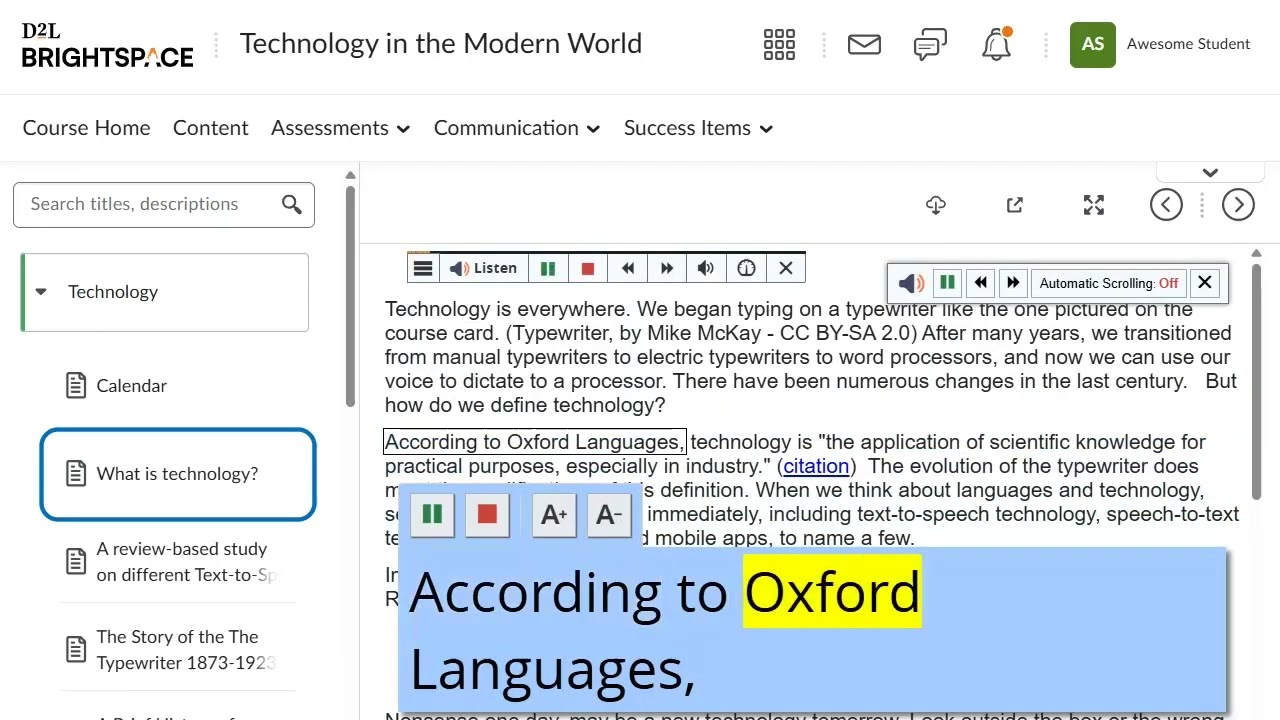
Synchronized Highlighting: The text is highlighted by word and/or sentence as it is being read.
Text Mode shows the content in an easy-to-read format, using font, size, and colors of your choice.
Integrated reading and translation tools.
Audio File: Download an mp3 audio file of the content for offline listening.
Can be activated in Brightspace on a school-by-school or course-by-course basis.
Just one click to listen and follow along with the highlighted text.
Read Selected Text: Select any text and click the Listen button to listen to it.
Floating Listen button, player, and menu stay visible when scrolling down on a page and can be conveniently repositioned by the user.
User Settings: Customize reading speed, highlighting colors, and more.
Click and Listen allows users to use the mouse to click on the text that should be read, or use the keyboard to navigate to and select the text section to read.
Quick and easy access to all features through expandable player and menu.
Fully Cloud-Based: No installation required to use ReadSpeaker in Brightspace.
Customer-specific pronunciation dictionary.
Online Statistics: The ReadSpeaker Customer Portal contains detailed usage information, including which pages have been listened to, and when.
Step-by-step instructions and a readily-available support team if you should need any help.

Helping students learn
ReadSpeaker is a tool for all students to assist in their learning and mastery of the content, not just a specific demographic. It supports all of our learner’s success.
Kyle CollinsDean of Instructional Innovation and Design

Northeast Iowa Community College
Affordable, job-ready learning at scale
We want to be a true game-changer, providing affordable, career-aligned learning experiences that empower learners to graduate into a job with little to no debt. With ReadSpeaker and Brightspace, we’re on this path to be transformative.
Dr. Andy SheanChief Learning Officer, Penn Foster Group

Penn Foster Group
A complete set of text-to-speech learning tools for Brightspace
See how students and teachers are using text to speech in the Brightspace environment.
ReadSpeaker for Brightspace
- The Suite of Learning ToolsListen, Text Mode, Page Mask, and more!
 Using text to speech for facultyTools for teachers and administrators.
 Using text to speech for studentsSee how students are using text to speech.
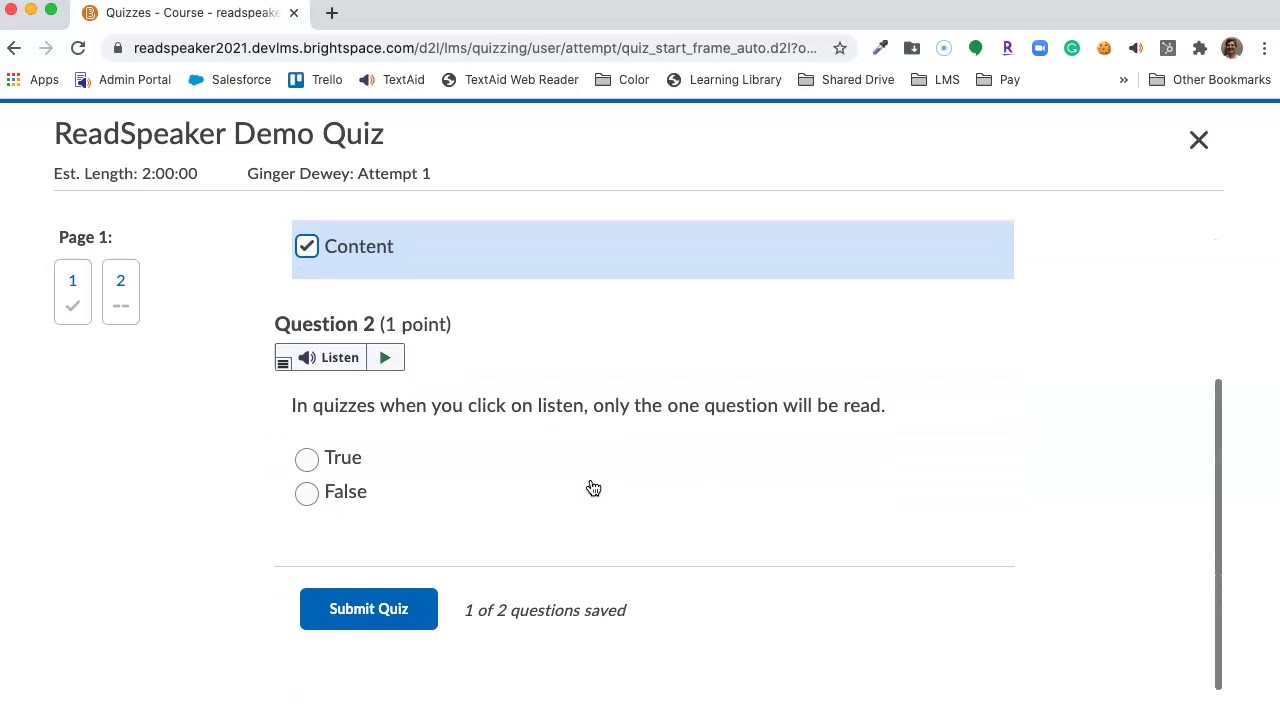 Using Text to Speech for AssessmentsTaking exams, quizzes and assignments within Brightspace.
FAQ about Brightspace TTS
Brightspace accessibility ensures that any student has equal access to learning content. Whether students with heavy course loads, those with learning challenges such as dyslexia or AHDA or physical disabilities such as impaired vision, accessibility measures will support these students in their learning.
Today, educational institutions must meet Section 508, WCAG and web content accessibility requirements. By using tools such as text to speech directly within the Brightspace environment, institutions are meeting accessibility requirements while supporting both teachers and students in providing inclusive education opportunities for all.
ReadSpeaker text to speech is already integrated into the Brightspace learning environment. Administrators can find it on the Brightspace App Finder and simply request it to be added to their Brightspace platform through their account manager. The tools will be automatically activated for all courses.
ReadSpeaker has its own document viewer called docReader. You can listen to text that is highlighted as it is read out loud, use a Page Mask, a Reading Ruler, and more. You can also highlight notes and then download them for studying.
ReadSpeaker is embedded in quizzes in all major LMSs. To use ReadSpeaker in Respondus LockDown Browser or other locked browsers, the student goes to the quiz in the same manner and will see the Listen button or will click the Activation Tab which launches the Listen button. In most LMSs, the student will need to highlight what they want to read and then click Listen. Brightspace by D2L has a listen button on each question, so there is no need to highlight.