Education
Building Trusted Learning Ecosystems in Moodle That Are Ready for What's Next
How Moodle Marketplace and Certified Integrations make it easier for institutions to find trusted solutions and build more inclusive learning experiences.
April 29, 2024
Building your first Adobe Captivate course? You’ll probably need a voice over. Find out how to produce one here.
Adobe Captivate is all you need to produce great e-learning courses (without having to become a design expert first).
This authoring platform’s slide-based structure is like a super-charged PowerPoint, but it does a lot more than slides. It supports interactive video content and animations, and has all kinds of functionality to improve learners’ experiences.
With its intuitive workflow, Captivate helps a lot of instructional designers produce more high-quality courses in less time. It even makes working with audio relatively easy, and that includes a crucial element of any e-learning course: the voice over.
Not sure how voice overs work in a Captivate course? Here are three simple ways to add narration to your Adobe Captivate (opens in a new tab) project.
Generate instant e-learning voice overs with lifelike text to speech (TTS) from ReadSpeaker.
See our TTS solutions for educators (play video)
These mini-tutorials assume you’re using the latest version of the e-learning platform, informally dubbed “the all-new Adobe Captivate.” (Incidentally, this naming convention marks a departure from earlier versions, which were named by release year, i.e., “Adobe Captivate 2019.”)
Here are the three ways to get a voice over into your Adobe Captivate projects.
Your first option is to record narration directly into your project. Adobe’s e-learning authoring platform includes an audio editing tool, so you can create a voice over without any other software.
To record your voice over, grab your script, open a new project, and follow these directions:
There’s no need for a Save button; once your recording is complete, the waveform will show on your project timeline. That’s all you need to do to record narration, unless you want to do a little audio editing (see boxed text).
Starting from the Audio menu, select the little pencil icon. Then scroll down to the waveform editor at the bottom of your workspace. Select the section you’d like to edit, and choose from the options in your Edit Audio menu.
These include:
This audio editing tool works the same whether you record narration, import a file, or use Adobe’s rudimentary text-to-speech (TTS) tool.
Text to speech (TTS) allows you to generate audio narration without having to record a single word. All you need is a script and a TTS tool, and Adobe Captivate features some of the best TTS voices in the e-learning industry.
In 2023, the platform updated their TTS (opens in a new tab) engine with “new and improved” English, Spanish, and Korean voices from ReadSpeaker.
To access these lifelike TTS voices, and instantly generate a voice over from your written script, follow these steps:
You can drag the TTS files around on your timeline to get them lined up perfectly. If you already have narration recorded, however, you don’t need to record or worry about text to speech management. Instead, you just need to access the audio file. That’s what our next tutorial is about.
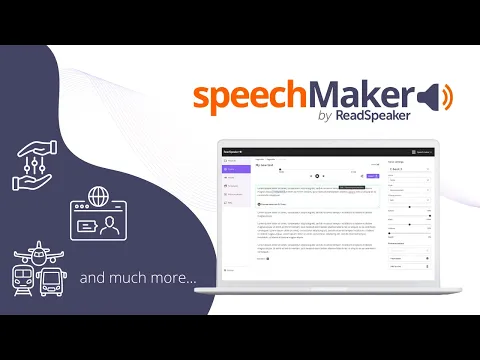
For more control over your voice over, and a broader selection of lifelike AI voices, generate an audio file with ReadSpeaker speechMaker. This easy-to-use TTS production tool allows you to turn your script into top-quality synthetic speech in three quick steps:
 (play video)
A custom pronunciation dictionary ensures perfect speech, while SSML support allows you to further adjust performance. With your finished speechMaker file completed, the next step is to import it into your Captivate project.
The voice of your course represents your brand. Make sure it reflects your brand personality perfectly with a custom TTS voice from ReadSpeaker.
We can synthesize the voice of your CEO, your brand representative, the author of your best-selling textbook, or an all-original persona constructed to reflect brand values.
Access your custom voice in speechMaker or any of ReadSpeaker’s TTS tools to deploy it across all your customer touchpoints.
Ready to create a unique AI voice for all your e-learning content? Contact us to get started.
Here’s how you import audio files into Adobe Captivate:
From here, you can edit the audio within your project as listed in the boxed section above. Easy stuff.
Maybe you’d also like to add background music or sound effects to your e-learning course. We’ll cover that process next.
Adobe Captivate makes it easy to add background music and sound effects to your project. In fact, the platform comes complete with dozens of audio files ready to use. The simplest way to add background music is to choose from this list, which is found in Captivate’s Assets menu.
Follow these steps to get that audio into your project:
In the Edit Audio section, you can also fade music in or out, or loop audio to play over the whole slide. And you can check the Stop Background Audio box to make sure the music ends at the same time as your e-learning project.
That should be enough to get you started with voice overs and background audio for Adobe Captivate. But what if you use additional tools, such as a learning management system (LMS), to share your e-learning content? You may wish to use the same voice for all of your courses, in every channel. After all, that’s just good branding.
In that case, choose a TTS solution that offers top-quality AI voices, native LMS integration, and ongoing pronunciation support. In other words, choose ReadSpeaker.
ReadSpeaker’s TTS solutions support educators at every level, from K12 through higher education and into corporate learning. Our AI voices are incredibly warm and lifelike, giving learners an experience that keeps them engaged.
Studies suggest that today’s AI-powered TTS voices perform as well as, or even better than, human voice recordings in digital learning content. ReadSpeaker’s top-quality TTS voices already feature in Adobe Captivate, but ReadSpeaker solutions are also available natively within every major LMS.
That makes ReadSpeaker TTS the ideal choice for e-learning providers, whether you’re building courses or simply hosting them. We can even build you a custom AI voice that you can use everywhere you distribute your e-learning content, projecting your unique brand into the audio space.
Ready to simplify voice-over production for your e-learning content, in Adobe Captivate and everywhere else?
Contact ReadSpeaker todayEducation
How Moodle Marketplace and Certified Integrations make it easier for institutions to find trusted solutions and build more inclusive learning experiences.
Education
See how ILIAS and ReadSpeaker's text-to-speech technology work together to create more flexible learning experiences, with insights from the University of Stuttgart.
Education
Over the past year, we’ve immersed ourselves in the digital assessment community, through conferences, webinars, research, podcasts, and conversations with assessment leaders. Along the way, several themes have consistently emerged. These are the ideas we believe are shaping the future of accessible digital assessment.