CH3CH2OHis ethanol.
ReadSpeaker Text-to-Speech Solutions for Learning
Make Learning Content More Inclusive and Engaging for All Ages
Improve learning outcomes for students with a comprehensive suite of text-to-speech tools from the specialists in AI-powered voice technology. Our products are full-featured and flexible to meet the needs of every learner in any learning scenario.
- Read aloud web pages, PDFs, e-books, assessments, SCORM packages, documents, STEM and more
- Use anywhere, anytime, on any device
- Choose from 300+ voices, 90+ languages

Let’s read some STEM.
Knowledge Check!
Which statement is true?
Disabilities take many forms.
All students must report a disability.


ReadSpeaker for LMS
Easily integrate text to speech into your LMS of choice. ReadSpeaker for LMS includes read-out-loud capabilities and an extensive set of speech-enhanced learning tools, all accessible directly within the LMS environment.

In the course, we will discuss two products, webReader and docReader. The information below will provide clarity as you move through the course. Brightspace has two primary views - Classic and New Learner Experience. In the New Learner Experience, you can have your table of contents on the left side of the page (View 1A) or down the center of the page (View 1B.) The View 1A and 1B names are the ones we are using to help you determine which set of instructions to use.
webReader is the product that is used for:
- Reading each quiz question
- Reading assignments
- Reading discussion topics and threads
- Reading files in content that are marked as a webpage (globe icon0
webReader
Here is an image of the webReader. As described above, it is displayed at the top left side of the files.
Let’s read a few math and STEM equations and expressions.
is the chemical formula for ethanol.
Let's use the Snapshot tool to read what number 15 is on the diagram below.

Automatic Scrolling: Off
General
Getting Started & Learner Support
This is a module that will supply the following:
- Syllabus
- Addendum
- Calendar
- Learner Support Tools
- ReadSpeaker
- Library Resources
- Tutoring Resources
Topic 1
Since ReadSpeaker docReader is hosted server-based web product that converts and displays standard document types, there is no need for additional work or publishing procedures for the Customer when producing the documents and making them available using docReader other than following general authoring best practices.
- available Adjective
- able to be used or obtained; at someone's disposal
Examples
- refreshments will be available all afternoon
Learner Support
Each person has different learning preferences. You may prefer to listen to information, or read information, or to interact with information. Did you know that if you employ two or more senses while studying, you will retain more information? ReadSpeaker products allow you to listen to materials as you read it. You can have the words/sentences highlighted as another way to interact with the material. If you are proofing a paper, then you will want to use TextAid to read it to you. When listening, you will catch many mistakes like from/form or singular subject/plural verb. Be sure to try out these products.
Other Learner Supports
Your institution most likely has other learner supports available. These may include tutoring, library services, study groups, career counseling, academic coaching, and more. Take a few minutes to investigate these opportunities at your institution and how you can relay the information to your students.
Tutoring
Students can use TextAid to proof papers before going to tutoring. They can remove typo's, fix misspellings, and subject-verb agreements all in advance of the tutoring session. This allows the tutor to focus on the flow of the document and the structure of the document. In essence, this allows the tutoring session to be more productive and reduce the number of trips the student has to make to the tutors. Tutors are then able to assist more students because of this reduction in trips.
Automatic Scrolling: On
Quick, Easy Integration
Improve accessibility across your LMS in minutes with our building blocks and plug-ins.
Broad Compatibility
Add text-to-speech functionality to any LMS, proctoring system, or learning platform.
Robust Learning Support Tools
Enhance your learning environment with a full suite of reading, writing, and studying tools.
24/7 Customer Service
Solve issues quickly with the help of our readily-available, knowledgeable support technicians.
Find out more about ReadSpeaker for Learning Management Systems

If it’s not easy and intuitive students won’t find it and use it. I think that is why you have seen such a large number of students starting to use it as they are finding it on their own. I mean it says ‘Listen’, how much easier can you get?
ReadSpeaker for SCORM
Transform SCORM packages into engaging multimodal learning experiences that every student can access.


EXIT COURSE
Knowledge Check!
Use the information from the previous section to answer each question.
Which of the following is true about disabilities?
- Disabilities come in a variety of forms including physical, cognitive, sensory, and emotional impairments
- All students must report having a disability
Seamless Integration
Add high-quality, natural-sounding text-to-speech directly inside your SCORM packages with minimal setup.
Evolve Your Current SCORM Content
Upgrade existing courses with voice-enabled learning without rebuilding from scratch.
Meet Accessibility Mandates
Ensure your e-learning content complies with WCAG, Section 508, and EN 301 549 accessibility standards.
Technical Compatibility
Works with popular authoring tools including Genially, Rise, Adobe Captivate, Lectora Inspire, and iSpring.
ReadSpeaker for Assessments
Instantly create an audio version of exams, tests, and quizzes. ReadSpeaker text-to-speech technology reads test instructions and questions aloud, boosting understanding and creating a uniform testing experience that sets the stage for success.
Learn more about ReadSpeaker for Assessments



The surface of the Moon is covered with craters. Most of these craters were formed by
- Aeruptions of active volcanoes
- Bthe impacts of many meteoroids
- Cshifting rock on the Moon’s surface (“moonquakes”)
- Dtidal forces caused by the Earth and Sun
Released item: NAEP 2005 Science, Grade 4 (NCES)
Provide Cost-effective Support
Reduce sourcing, planning, and budgets associated with human readers, personalized learning plans, IEPs, and 504 plans.
Improve Test Scores
Remove the roadblocks associated with reading to get a more accurate measurement of subject-area knowledge and skills.
Boost Confidence
Support all students with fair adjustments that allow everyone to access and answer questions independently.
Customize the Testing Experience
Customize feature restriction and provide the same text-to-speech testing experience across multiple platforms.
ReadSpeaker TextAid
Support learners of all kinds with individualized assistive technology. TextAid pairs digital text- and image-reading capabilities with reading, writing, and study tools.
Find out more about TextAid“I find TextAid far more user friendly, quicker, and more accessible than other solutions. Plus now I can work independently, on any device. I’m also a fan of working with the OCR and storing my OCR-ed photos of text.”
Welcome to ReadSpeaker TextAid
To get going, you can click on the Text in the left hand side toolbar. By using Copy and Paste, simply copy the text you want to have read and paste it into the new document. Click the to listen to it read aloud.
You can also add documents from your computer, such as PDF files or Word documents by clicking the and select “Upload Document”. The document will then be added to your personal Library.
There are also many other tools and features available, please watch the short video below for a guided tour!
ReadSpeaker TextAid for Users - GeneralHappy Reading!
- Improve Comprehension
- Help struggling readers by giving them the ability to look up word meanings, use screen masks, translate text, check spelling, and more.
- Personalize The Learning Experience
- Allow students to customize TextAid settings –everything from language, reading speed, and highlighting to text color, size, font, and more.
- Use Individually Or Campus-wide
- Purchase licenses for individual users or add it campus-wide and give all students the option to access learning support tools.
ReadSpeaker SpeakUp
Support learning anywhere and everywhere with an offline digital reading tool. Designed for PCs, SpeakUp is an easy-to-access application allowing for offline (and online!) reading of documents on Windows devices.

Address Digital Equity Issues
Ensure educational materials and learning tools remain accessible for learners without a personal internet connection.
Ensure Compatibility
ReadSpeaker’s SpeakUp has full functionality in Microsoft Store applications and most modern Windows applications.
 WCAG 2.1 AAILUNION AccessibilityScope: webReader
 WCAG 2.2 AAProper AccessScope: webReaderRead the audit report
 VPAT 2.5Deque SystemsScope: webReader 3.8Open the VPAT
Designed For Educators Of All Types
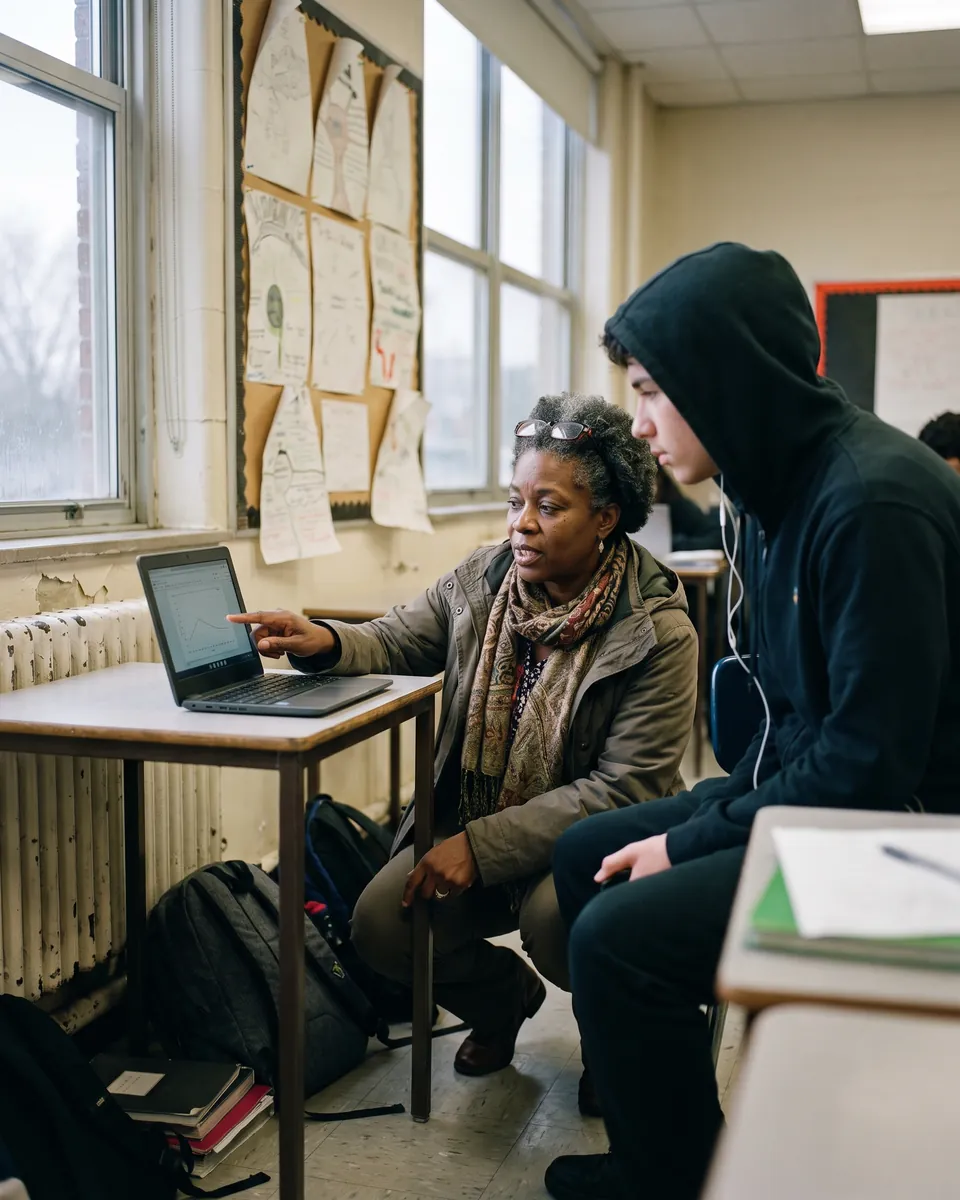
Educators
Integrate ReadSpeaker into your courses and give all students the option to listen to their coursework and access literacy tools.

Administrators
Incorporate TTS as part of a broader strategy to improve the accessibility of learning materials for all students.

Content Providers
Integrate TTS tools into your digital ecosystem –everything from websites and apps to content and reference databases.
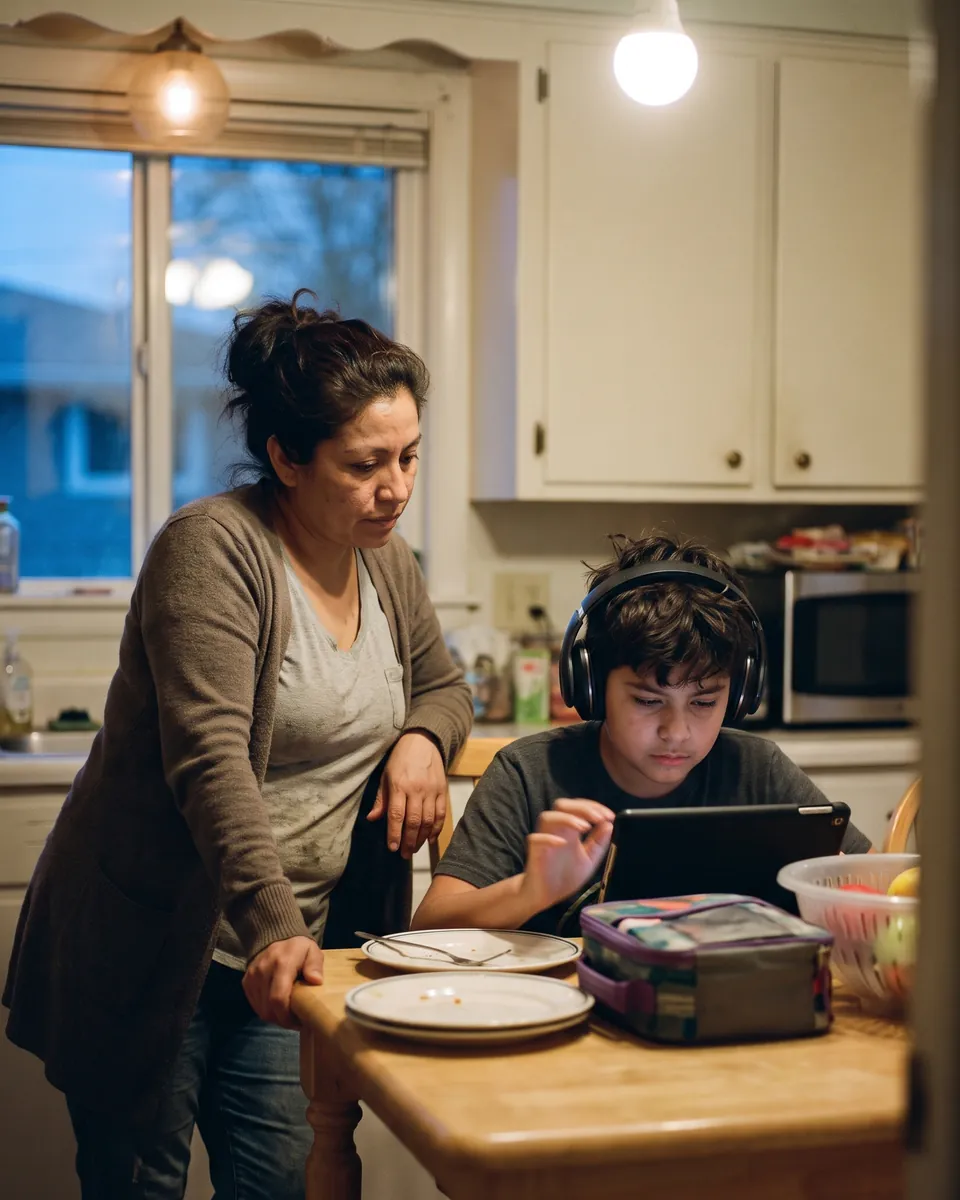
Parents
Use TTS to offer support for your children in completing homework assignments and encourage reading for pleasure.
What Our Users Are Saying
4 videos
Customer videos
- ReadSpeaker TextAid Testimonial: CeciliaCecilia, TextAid user. Video testimonial from the Learning Library.
 Overcoming Dyslexia Barriers: A Student’s Guide to Using TextAid for Writing & FocusA student at Stafford Grammar School. Customer story.
 ReadSpeaker TextAid Testimonial: GoldaGolda Lawson-Cohen, TextAid user. Video testimonial from the Learning Library.
 Principal of the Year Joanne Glenn Discusses ReadSpeaker Text to SpeechJoanne Glenn, Pasco eSchool. Customer story.

Giving students multiple ways of consuming content has proven very effective. ReadSpeaker TTS tools allow students to listen to content, or choose bi-modal learning where they see and hear content simultaneously. ReadSpeaker TTS is a great cost-effective accessibility tool! We knew this tool worked; we knew that it was reliable, and we knew that it was a single tool that could meet the needs of a variety of learners.
Read the story
Free guide 5 pages · PDF
What you need to know about Text to Speech for Education
11 FAQs on how to use text to speech to attract and retain students, helping them succeed.
The 11 questions inside
- You hear a lot of acronyms bandied about in the educational technology field. What exactly is TTS?
- Isn’t TTS just providing audio files?
- What exactly is bimodal presentation?
- What is Universal Design for Learning?
- Isn’t text to speech just for blind people, or those with learning disabilities?
- How exactly does listening help students?
- Is there any scientific basis to this? How can I be sure that this will really help my students?
- Isn’t listening to text ‘cheating’?
- There are plenty of free solutions out there. Why don’t I just use one of those?
- It must be difficult to integrate this into content. How do you keep all the content speech enabled?
- Isn’t this just a ‘flash-in-the pan’ technology gadget?
Find your platform





No platform matches this search.
FAQs about Text-to-Speech Solutions for Learning
Text-to-speech tools literally read written text out loud. That equates to another way of delivering content, a practice that can be used in a variety of ways to support, attract, and retain learners of all kinds. TTS isn’t just an assistive technology; it’s a comprehensive education technology. Specifically:
- It can be used to assist students with vision impairments, giving them an easy way to access digital content.
- It supports struggling readers as they learn. TTS helps students with learning disabilities to make the connection between sounds and letters and develop higher-level reading comprehension skills, which, in turn, allows them to enjoy reading!
- It helps second-language learners integrate written and spoken expressions in a new tongue. As long as they are accurate, TTS tools improve pronunciation and provide opportunities for solo conversation practice.
- It supports all students by allowing them to personalize their learning experiences. Many students without learning challenges find they retain information better when they listen to material rather than visually read it.
The takeaway: The benefits of text to speech aren’t limited to students in special education : TTS improves learning experiences and outcomes for everyone!
Much research has been done on the results of using TTS in an educational environment, and it has been shown to improve reading comprehension scores for students with reading disabilities. With TTS read-along solutions, struggling readers are no longer stuck on the basics of decoding and understanding text; they are given new and exciting opportunities to engage with the content, to make meaning from text, and to develop comprehension and study skills.
ReadSpeaker’s TTS software provides the crucial audio component, but it also includes enhanced learning tools, too. Students can choose to highlight words as they are spoken, remove images and other distractions, and focus on a single word or line at a time with masking.
Additionally, there’s also been a considerable amount of research proving the effectiveness of bimodal learning (presenting content in both audio and visual formats at the same time) on student success. Not only does it improve reading comprehension and word recognition but it also tends to result in increased reading time and a more positive outlook on reading.
That said, there is one important aspect of TTS tools to keep in mind: Poor voice quality leads to an unpleasant learning experience, which leads to less usage, and therefore no meaningful impact on reading skills. Free text-to-speech apps don’t always speak naturally! The best text-to-speech software generates lifelike voices. ReadSpeaker’s proprietary machine learning models (trained on human voices) allow us to create high-quality, natural-sounding synthetic voices that listeners prefer.
Our TTS software can be applied to any type of digital text : coursework, e-books, SCORM packages, e-learning materials, personal reading, and more, across educational settings, so it’s extremely flexible in its application.
Using ReadSpeaker TTS, students can listen to content on any web page (as long as it is presented using standard HTML technology) as well as content within Google Docs and Microsoft Word Online pages, emails in Gmail and Outlook online, and PDF files within the user’s browser.
Our text-to-speech software can also be integrated directly into any learning management platform and added to assessment platforms.
- Yes! ReadSpeaker integrates seamlessly with SCORM packages, adding high-quality, natural-sounding voice directly inside the content. Our integration works with both new and existing courses.
- Yes! If you’ve developed e-learning materials and would like to add a voice over component (or create audiobooks of your own), you can use ReadSpeaker to instantly generate audio files for use either online or offline.
ReadSpeaker’s webReader, which instantly converts text to speech, is a device-independent and cross-platform solution. It works with:
- All commonly used online devices: PCs, laptops, Chromebooks, tablets/iPads, smartphones, and more.
- All major operating systems: Windows, Chrome, Android, Apple’s iOS, macOS, and more.
- All major browsers:
- For laptops and PCs: Edge, Chrome, Firefox and Safari
- For mobile devices: Safari and Chrome on iOS devices, Chrome on Android devices
Note, too, that neither customers nor users need to download or install any software for webReader to work on their computers and/or mobile devices!
- Yes! Students can listen to content in any of our 90+ languages and 300+ voices : we support everything from English and Spanish to Portuguese, Chinese, Danish, and more. See our full list of available languages here.
We offer offline text-to-speech solutions to assist learners who are in a rural setting or have digital equity issues; they’re also useful for reading complex assessments in a lockdown browser.
For example, our Offline Chrome Extension (which works on Chrome for desktop and Chrome OS only, not mobile devices) is perfect for when a student needs text-to-speech functionality on a computer that is not connected to the Internet. The tool works on all pages open in the Chrome browser.