Education
Integrity Meets Inclusion: Building Reliable Online Assessments in the Age of AI
Discover how ReadSpeaker and SMOWL combine academic integrity and accessibility to support reliable, inclusive online assessments within the Moodle ecosystem.
February 7, 2025
Looking for purchasing guidance that cuts through the assistive technology confusion? This framework focuses on what really matters when making AT choices.
Just like teaching and learning, there’s no “one-size-fits-all” approach to assistive technology (AT).
Assistive technology refers collectively to the tools, devices, and software that help students of all ages overcome challenges related to learning. Examples of assistive technology include low-tech items like graphic organizers and pencil grips to high-tech items such as talking calculators, alternative keyboards, speech recognition software, and text to speech, just to name a few.
The use of assistive or adaptive technology in the classroom has grown exponentially in recent years, as has the menu of offerings available. Technology is advancing quickly, producing numerous tools designed to address the equally broad range of abilities. As a result, educational institutions and classroom teachers now have more high-tech options than ever to offer learners.
But the sheer number of devices can in and of itself become a hindrance, making it difficult to know which tools will benefit your student population the most, and how they work together.
If you’re struggling to figure out how to level the playing field and provide students with a more personalized, accessible learning experience, specifically as it applies to digesting and learning from online content, use the guide below. It offers a complete framework for selecting assistive technology solutions that do more than just help you comply with accessibility rules and guidelines; they truly address the unique challenges of your diverse learners.
Let’s dig in.
Thinking of offering learners a text to speech option? See how ReadSpeaker compares to other, similar tools and what to pair it with for the strongest approach to accessibility.
Assistive Technology Classroom Tools: What type of AT do you need?
Basic Requirements For Making Your Shortlist
Deeper Dive Aspects: Determining The Best Fit
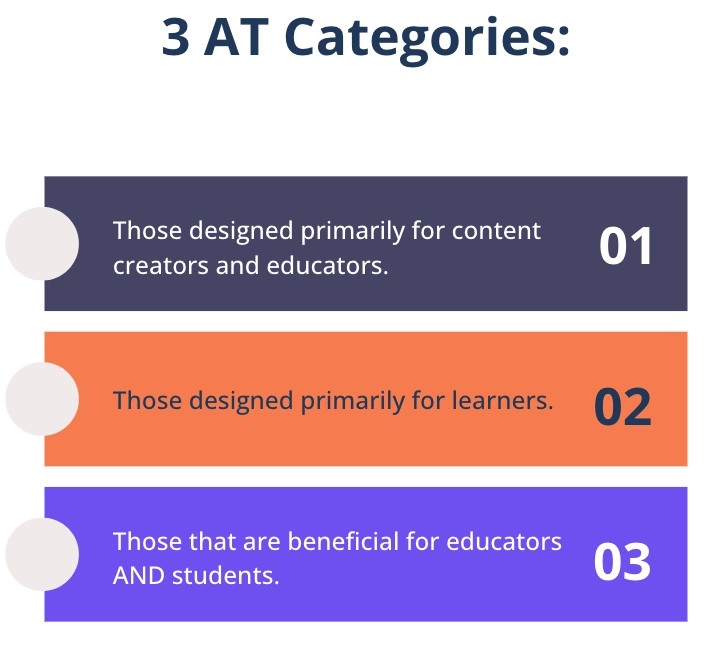
The first step is to think about the type (or types) of tool you need. In general, AT tools fall into one of three general categories:
These tools help educators make the content within their courses accessible, for instance by identifying accessibility barriers and suggesting changes. An accessibility checker is a good example of this type of tool. It examines lesson and homework content for accessibility issues, missing headers, small font, etc. before the content is published so educators can take action to make their web pages and documents more accessible.
These tools help students with disabilities consume online content more effectively. Common examples are screen readers and alternative input devices. Screen readers help learners with visual impairments to navigate the computer interface on their own. Alternative input devices provide alternative ways for learners to interact with computers, bypassing traditional keyboards and mice. They are particularly helpful learning aids for people with motor impairments. Examples include voice recognition software (like Dragon NaturallySpeaking), eye-tracking devices, and switches.
These tools aid educators in making learning more accessible and also assist learners in digesting content.
One example is text-to-speech software, like ReadSpeaker, which instantly reads online text aloud. Educators can also use it to quickly make voice overs for online learning content or create narrations that go along with text documents.
It’s also perfect for people with ADHD, dyslexia, learning and cognitive disabilities, and visually impaired learners, as well as people without disabilities who prefer consuming content in audio format. It also comes with a variety of study tools that can benefit everyone.
LMS accessibility tools also fall into this category, such as Anthology Ally, Cidi Labs UDOIT, and Panorama. Using these types of technology in the classroom aids teachers in providing accessible material, and also helps learners by providing alternative content formats and sometimes instant read-alouds as well.
One in ten (opens in a new tab) children worldwide has a disability. Assistive technology is specifically designed to support these individuals by increasing accessibility to digital content. Typically, the appropriate AT devices are identified as part of a student’s individualized education program.
For example, a blind person or someone with low vision would have difficulty navigating a computer interface or consuming online course material without a screen reader. And a student with ADHD would struggle to learn from online content without the help of text-to-speech software. It’s imperative to provide disabled students with the appropriate assistive technology to help them succeed.
But it’s important to remember that assistive technology tools can also benefit learners without specific learning disabilities. They may simply need reading support, for instance, and would benefit from dictionary tools, read-along highlighting, or text to speech. And approximately two-thirds of people are multimodal learners, which means they’re most successful when information is presented in more than one way, such as in print (online) and via voice. Some AT tools have additional functionality that can go a very long way toward creating an inclusive learning environment for everyone.
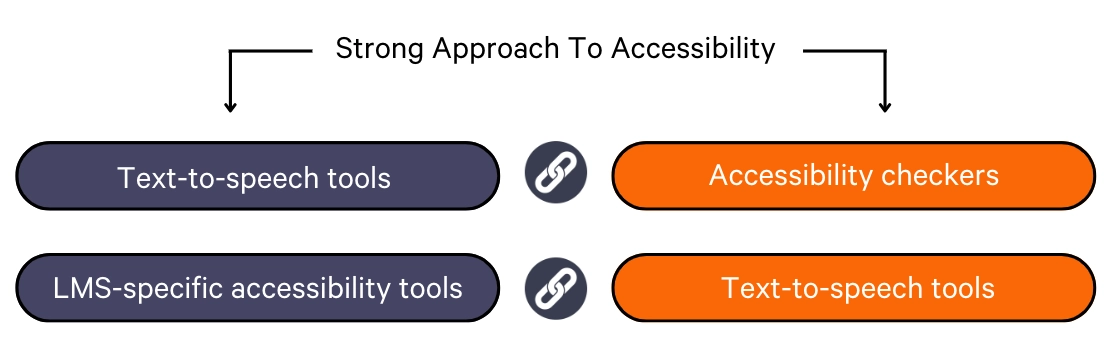
Secondly, don’t think of these categories as mutually exclusive. Very often, AT devices are complementary; by offering more than one you can significantly improve accessibility across your student population.
For example, individual learners may enjoy using two tools together, as in the case of screen readers and text-to-speech tools, for instance, to take advantage of the strengths of both options. And an LMS-specific accessibility tool, such as Cidi Labs UDOIT, pairs well with text-to-speech software so learners can have the optimal learning experience across ALL digital learning content, even when they’re working outside your LMS.
1. Understand the needs of your learners and your institution.
❑ Review any available assessments across your institution to get an overall picture of students’ learning needs, including their strengths, challenges, learning styles, and goals.
❑ Note the characteristics of the online content offered by your institution. Do your educators produce original online content? Is most online content consumed via an LMS?
2. Who will be using the assistive technology? Determine the target audience of the future tool. Is it:
❑ For educators? (to help them make accessible course content)
❑ For learners? (to digest written text online)
❑ For educators AND learners? (to improve the creation and digestion of online content)
3. Devise a list of possible options that are most likely to address your needs.
Download the complete evaluation checklist to make sure your next assistive technology purchase is the best match for your learners and your school!
Once you’ve reviewed any available assessments and identified the types of assistance that would be most helpful for your institution, it’s time to take a closer look at the product (or products) you’re considering.
Any tool should meet the basic requirements below to make your shortlist. If it doesn’t meet these requirements, implementation will be difficult if not impossible.
Generate a short list of options by evaluating:
❑ User experience. See which tools are easiest to use and navigate.
❑ Integrations. See which tools will mix with your existing technology stack, such as your learning management system, student information system, etc.
❑ Device compatibility. Determine which tools work across a range of devices (desktops, tablets, phones) and operating systems.
❑ Vendor support. Which vendors offer comprehensive training resources, responsive customer service, and ongoing technical assistance?
❑ Price point. Which tool(s) fit within your budget?
❑ Human resources. How likely is it that each of these tools will be embraced by your educators and learners?
Download the complete checklist here to ensure your next AT investment is a success.
You’re starting to home in on the best tools for your school! Now it’s time to evaluate your list of top choices by digging deeper into the below aspects for each option. Taking the time to learn more about the tools will help you make a more informed decision as to how much value they’re likely to bring to your school over time.
❑ Long-term value. Is the tool robust enough to serve you well?
❑ Trial periods. Take advantage of the trial period, and gather feedback from teachers and learners.
❑ Scalability and flexibility. Is it flexible enough to integrate with new tools and can it easily accommodate more (or fewer) learners?
❑ Track record. Ask for evidence of the tool’s effectiveness. If possible, talk with other educators using the technologies.
Implementation, functionality, and a supportive vendor are key to choosing the right AT. But there are also a few aspects that tend to be a little tricker to untangle, and may require further research or deeper conversations with the vendor.
Before you invest in a product, it’s critical to ensure you have a good understanding of the below in order to ensure a good outcome for your school:
❑ WCAG compliance. Will it help you comply with web content accessibility guidelines?
❑ Data security measures. How does it collect, store, and use student data? And does it comply with relevant data protection regulations?
❑ Limitations (for free tools). Will fewer features, limited support, or display advertisements hinder its usefulness?
❑ Pricing model. Look for a flexible, customizable pricing model, preferably one that is licensed-based rather than volume- or usage-based.
Lastly, you need to ensure your chosen tool will be able to adapt to the changing needs of your learners and the evolving environment of your institution. To make sure a tool offers more than just immediate benefits, ensure it meets these requirements:
❑ Is it mobile-friendly?
❑ Does it foster long-term user engagement? (personalization, gamification elements)
❑ Does it offer numerous linguistic options?
❑ Does the vendor have a reputation for high-quality expertise, customization options, and support?
❑ Does it support your broader institutional goals?
This guide was created to help you put together a powerful ecosystem of tools that provide all students with an equal opportunity to access information.
Download the full checklist for evaluating AT here.
ReadSpeaker’s own text-to-speech tool benefits learners with ADHD, dyslexia, visual impairments, and learning disabilities; it also helps learners without disabilities who prefer having online content read aloud. Educators can also use ReadSpeaker to quickly make voice overs for online learning content or create narrations that go along with text documents.
Digital accessibility was our founding mission, and we’ve been developing high-quality TTS voices and tools for well over two decades. To learn more about ReadSpeaker, talk with someone on our expert team.
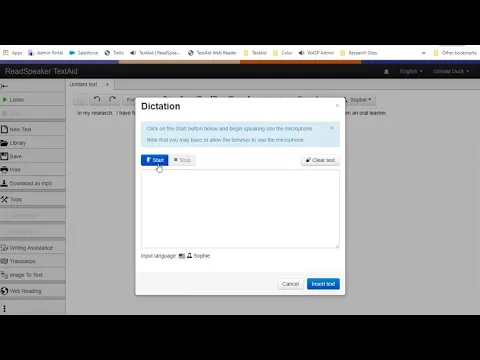 (play video)
For additional information on how to choose the right assistive technology for your classroom, refer to these other helpful resources:
Organizations:
Center on Inclusive Technology & Education Systems (opens in a new tab)
TechAbility (opens in a new tab)
Assistive Technology Industry Association (opens in a new tab)
Association for the Advancement of Assistive Technology in Europe (opens in a new tab)
National Center on Accessible Educational Materials for Learning (opens in a new tab)
Articles:
Where Does ReadSpeaker Fit In The Landscape Of Assistive Tech For Education?
Four questions to ask before choosing technology in education (opens in a new tab)
Education
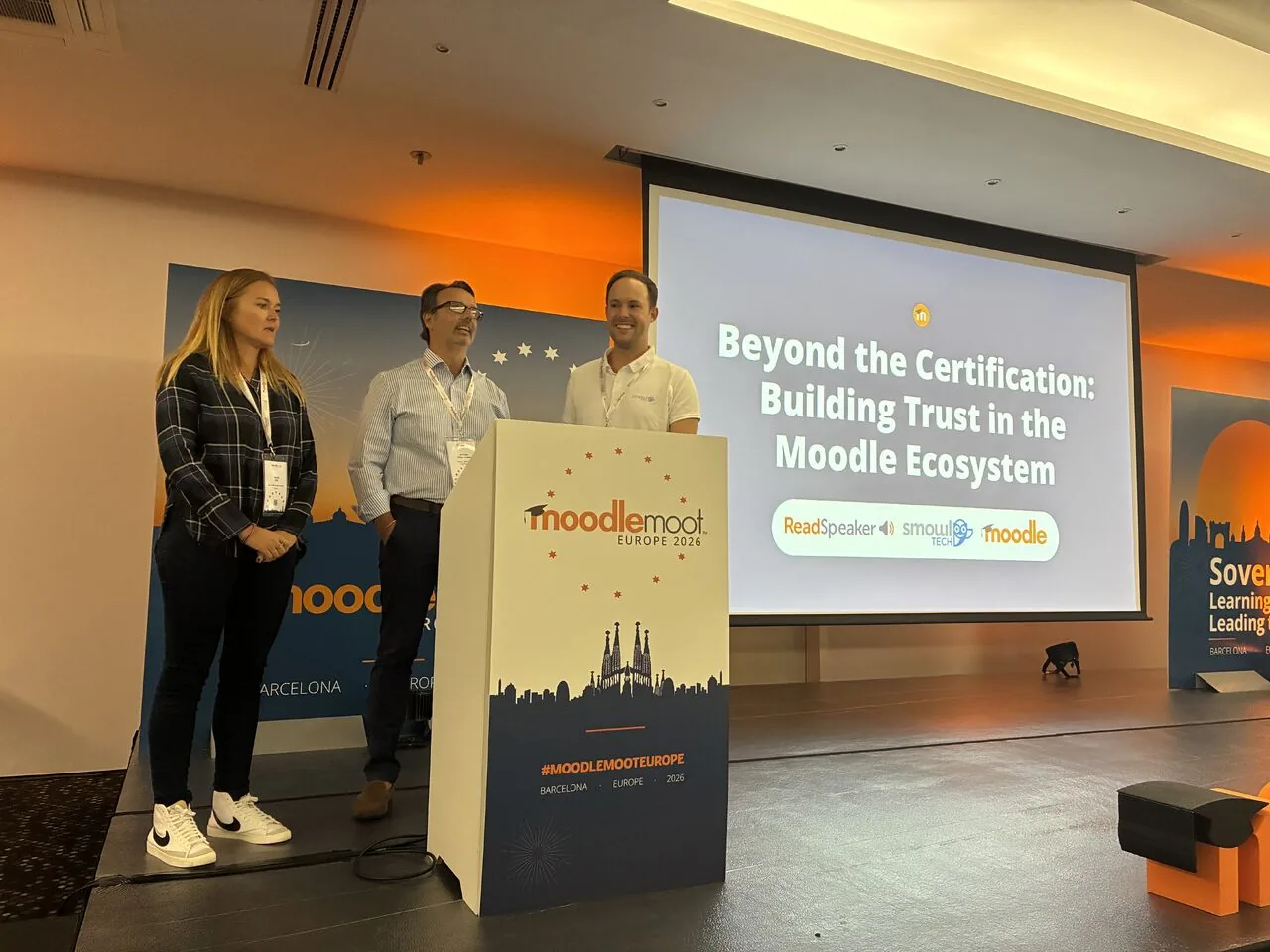
Discover how ReadSpeaker and SMOWL combine academic integrity and accessibility to support reliable, inclusive online assessments within the Moodle ecosystem.
Education
How Moodle Marketplace and Certified Integrations make it easier for institutions to find trusted solutions and build more inclusive learning experiences.
Education
See how ILIAS and ReadSpeaker's text-to-speech technology work together to create more flexible learning experiences, with insights from the University of Stuttgart.